




Overview
An infinite scroll ListView with refresh functionality is ideal for apps that display large datasets such as user lists, messages, or blog posts. Using Firestore as the backend, data can be loaded in chunks through pagination, ensuring better performance and a smoother user experience.
As users scroll to the bottom of the list, additional data is fetched automatically through infinite scrolling. The list can also be refreshed to instantly display newly added documents, keeping the content up to date without requiring users to restart the app.
Handling Infinite Scroll and real time Updates in listview in FlutterFlow
In FlutterFlow, we can create an infinite scroll in the ListView and create a document in the database using a bottom sheet. However, after the document is created, the newly added document does not reflect on the page. To address this, we need to handle it in Flutter.
Prerequisites
- Flutterflow
- Firebase
- Flutter
Flutterflow
FlutterFlow is a low-code development platform built on top of Flutter, Google's open-source UI toolkit for building natively compiled applications for mobile, web, and desktop from a single codebase.
To set up your FlutterFlow project, please follow the steps below:
1. Create a Flutterflow project
- Go to the Flutterflow console.
- Click on Create a project and follow the instructions to set up a new project.
.png)
Firebase Project Setup
Firebase is a Google platform offering tools to build, improve, and scale apps across mobile, web, and desktop, with services like real-time databases, authentication, and serverless backend solutions.
To set up your Firebase project, please follow the steps below:
1. Create a firebase project
- Go to the Firebase Console.
- Click on Create a project and follow the instructions to set up a new project.
.png)
2. Enable Firebase Authentication
- In the Firebase console, go to the Authentication section.
- Click Get Started and enable the sign-in methods you need (e.g., Email/Password, Google).
.png)
3. Connect Firebase with FlutterFlow
- Copy the Project ID from your Firebase project.
- Open the Settings of your FlutterFlow project.
- Choose Firebase Project, paste the copied Firebase Project ID, and connect it with Firebase.
.png)
Infinite Scroll Implementation in FlutterFlow
In FlutterFlow, use the Infinite Scroll widget with the following setup:
- Add a ListView with Infinite Scroll functionality.
- Place a button on the app bar that opens a bottom sheet for creating a new database document.
- Ensure the new document is saved to Firestore and displayed in the ListView.
Flutter
Flutter is Google’s open-source UI toolkit for building natively compiled applications across mobile, web, and desktop from a single codebase. It is known for creating visually appealing, high-performance apps with ease.
Steps to Install Flutter and Create Flutter Project :
1. Install Flutter
- If you haven't already, install Flutter on your development machine. Visit the Flutter installation page and choose your operating system (Windows, macOS, or Linux).
- Download the latest stable release of the Flutter SDK.
2. Create a New Flutter Project
- Open a terminal and create a new Flutter project using either the command line or manually. To create a project via the terminal, run the command:
flutter create project_name
- Implement the ListView with Infinite Scroll
// Automatic FlutterFlow imports

import '/backend/backend.dart';

import '/flutter_flow/flutter_flow_theme.dart';

import '/flutter_flow/flutter_flow_util.dart';

import 'index.dart'; // Imports other custom widgets

import 'package:flutter/material.dart';

// Begin custom widget code

// DO NOT REMOVE OR MODIFY THE CODE ABOVE!


import 'package:cloud_firestore/cloud_firestore.dart';


class ListViewInfinitScrolling extends StatefulWidget {

  const ListViewInfinitScrolling({

    super.key,

    this.width,

    this.height,

  });


  final double? width;

  final double? height;


  @override

  State<ListViewInfinitScrolling> createState() =>

      _ListViewInfinitScrollingState();

}


class _ListViewInfinitScrollingState extends State<ListViewInfinitScrolling> {

  final ScrollController _scrollController = ScrollController();

  List<Map<String, dynamic>> _adminData = [];

  bool _isLoading = false;

  bool _hasMore = true;

  DocumentSnapshot? _lastDocument;


  @override

  void initState() {

    super.initState();

    _fetchInitialData();

    _scrollController.addListener(() {

      if (_scrollController.position.pixels ==

              _scrollController.position.maxScrollExtent &&

          !_isLoading &&

          _hasMore) {

        _fetchMoreData();

      }

    });

  }


  Future<void> _fetchInitialData() async {

    setState(() {

      _isLoading = true;

    });

    final query = FirebaseFirestore.instance

        .collection('admin')

        .orderBy('createdAt', descending: true) // Ensure proper ordering

        .limit(10);


    try {

      final snapshot = await query.get();

      final newData = snapshot.docs

          .map((doc) => {'id': doc.id, ...doc.data() as Map<String, dynamic>})

          .toList();


      setState(() {

        _adminData = newData;

        _lastDocument = snapshot.docs.isNotEmpty ? snapshot.docs.last : null;

        _hasMore = snapshot.docs.length == 10;

      });

    } finally {

      setState(() {

        _isLoading = false;

      });

    }

  }


  Future<void> _fetchMoreData() async {

    if (!_hasMore || _isLoading || _lastDocument == null) return;


    setState(() {

      _isLoading = true;

    });

    final query = FirebaseFirestore.instance

        .collection('admin')

        .orderBy('createdAt', descending: true)

        .startAfterDocument(_lastDocument!)

        .limit(10);


    try {

      final snapshot = await query.get();

      final newData = snapshot.docs

          .map((doc) => {'id': doc.id, ...doc.data() as Map<String, dynamic>})

          .toList();


      setState(() {

        _adminData.addAll(newData);

        _lastDocument = snapshot.docs.isNotEmpty ? snapshot.docs.last : null;

        _hasMore = snapshot.docs.length == 10;

      });

    } finally {

      setState(() {

        _isLoading = false;

      });

    }

  }


  @override

  Widget build(BuildContext context) {

    return Container(

      width: widget.width,

      height: widget.height,

      child: Column(

        children: [

          Expanded(

            child: ListView.builder(

              controller: _scrollController,

              itemCount: _adminData.length + (_hasMore ? 1 : 0),

              itemBuilder: (context, index) {

                if (index == _adminData.length) {

                  return const Padding(

                    padding: EdgeInsets.all(16.0),

                    child: Center(child: CircularProgressIndicator()),

                  );

                }

                final item = _adminData[index];

                return ListTile(

                  title: Text(item['name'] ?? 'No Name'), // Adjust field name

                  subtitle: Text(

                      item['address'] ?? 'No Address'), // Adjust field name

                );

              },

            ),

          ),

          if (_isLoading && _adminData.isEmpty)

            const Padding(

              padding: EdgeInsets.all(16.0),

              child: CircularProgressIndicator(),

            ),

        ],

      ),

    );

  }


  @override

  void dispose() {

    _scrollController.dispose();

    super.dispose();

  }

}
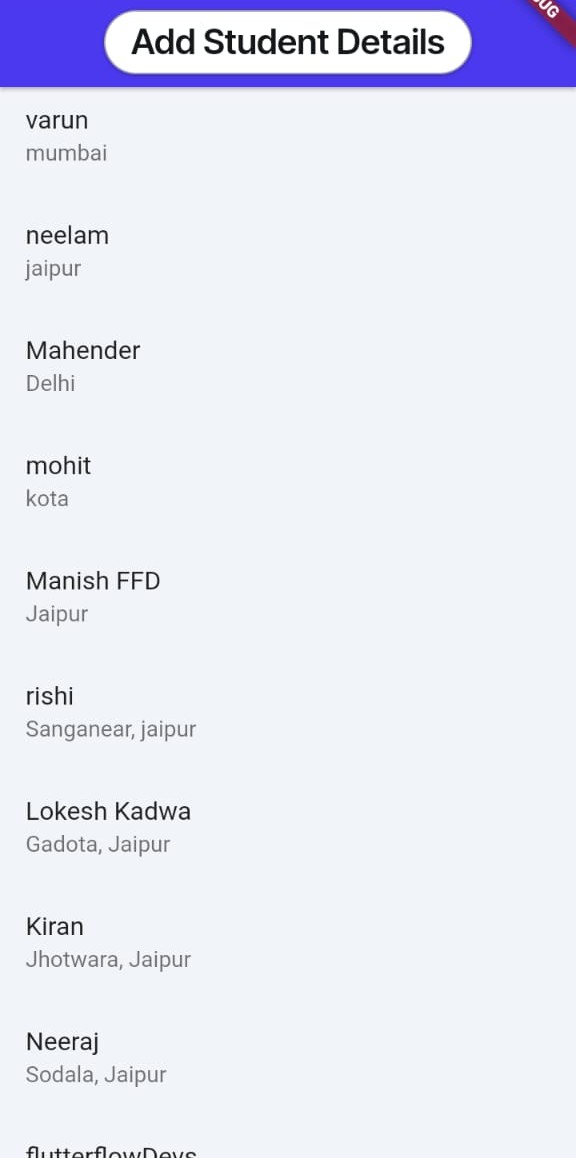
In the above image, the Infinite Scroll is shown and is working perfectly. You can create a document in the database by clicking on "Add Student Details." However, the newly added data does not reflect in the ListView.
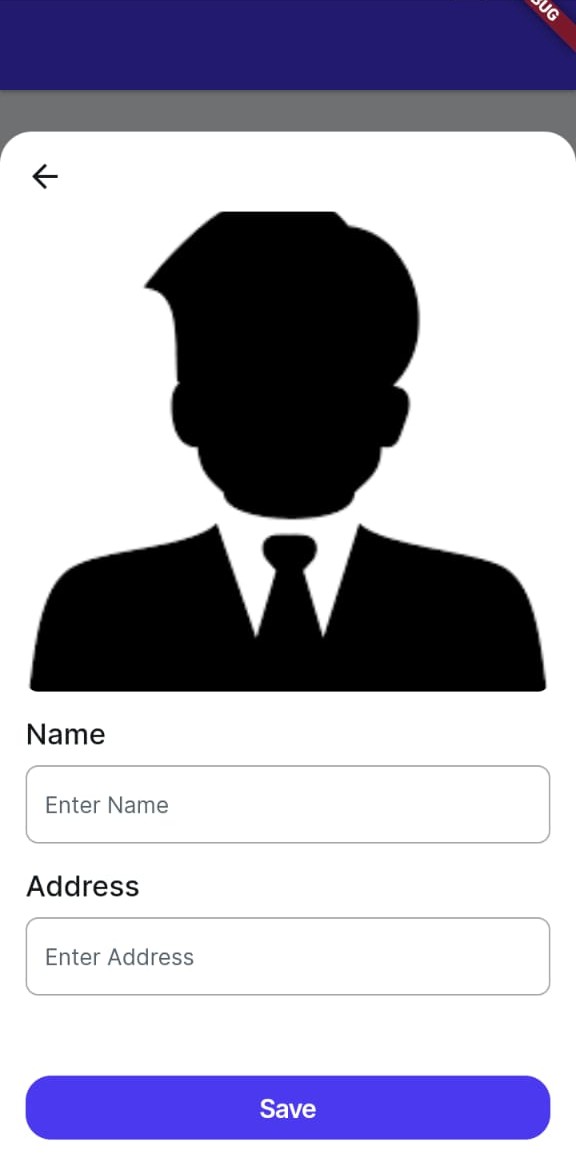
If you want to display the newly created document in the Infinite Scroll ListView, you need to create an app state boolean variable. Use this variable to control the visibility of the custom widget for the Infinite Scroll through conditional visibility. By doing this, you can ensure the new document appears on the page.
Conclusion
To ensure that newly created documents appear in the ListView, implement an app state boolean variable in FlutterFlow. This variable can be used to control the visibility of the Infinite Scroll widget. Trigger a refresh by toggling the boolean state after creating a new document. This ensures the data dynamically reflects in the ListView, providing a seamless user experience.
.jpg)

View more blogs


%20(1).png)


.png)
.png)
.png)

Ready to develop your own product? Get in touch today!
Get in Touch